All done in the time an add-in takes to fix one cell.

No Copilot subscription, no cloud upload. Any desktop Excel from 2016 on.
Xside is not an Excel we built. It uses the Excel already installed on your computer.
We didn't bolt AI onto Excel. We put Excel inside the AI.
The Excel already on your PC comes inside the app, and the AI drives all of it. No subscription tier. No VBA. No slow add-in.
We removed six frustrations, one by one. The technical detail sits in small print under each one.
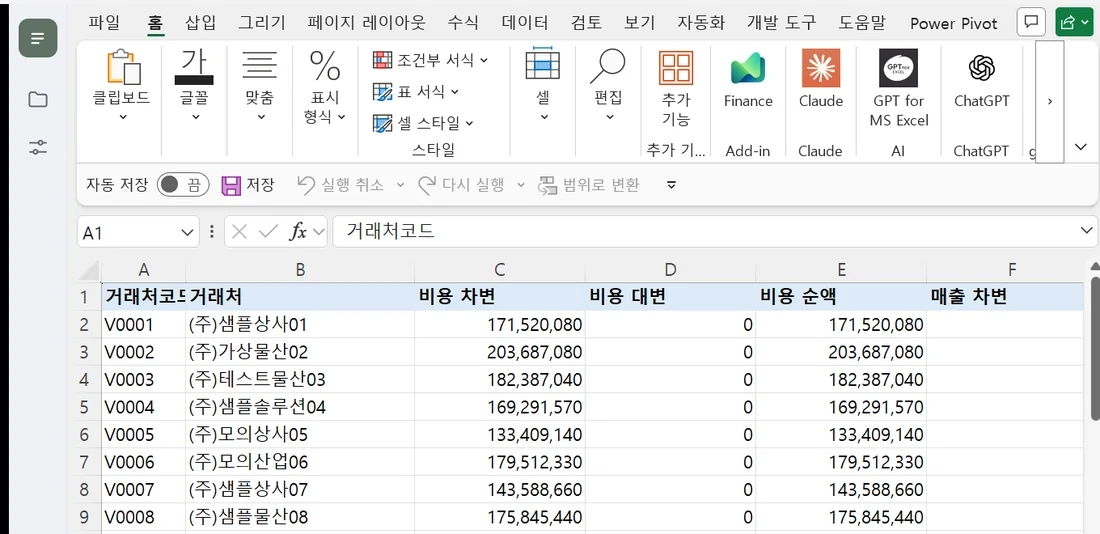
Nothing moves to another screen. The Excel you already use opens right inside the app, with shortcuts, ribbon, formatting and macros all alive. Results are written straight into your workbook.
TechThe app does not build a new Excel. It brings the Excel window already installed on your PC inside the app window. It operates Excel through the official channel (COM) that Windows provides so "other programs can drive Excel". Nothing is installed into Excel.

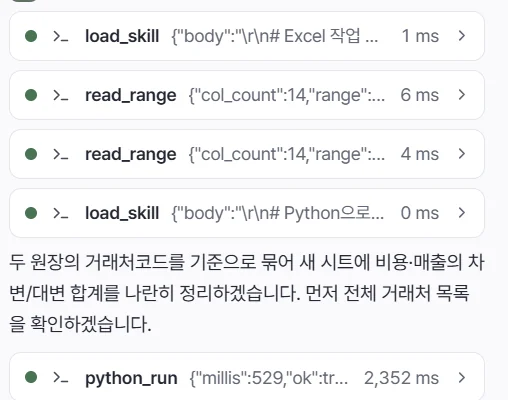
We do not send the table to the AI. The AI decides what to do, and Excel reads, writes and calculates at its own speed. A 50,000-row summary in 3.2 s, debit/credit reconciliation in 4.4 s, anomalous-row search in 1.2 s.
TechThe AI does not read and write cell by cell. It exchanges table ranges as one block. Excel does the sums and pivots, and the AI receives only the parts it needs, which saves time and cost. The app itself is a light 5.7 MB. The numbers are measured values.

Start right away with a ChatGPT subscription, or use an API your company approves, an on-prem server, or Ollama on your PC. On an air-gapped network it runs with no internet.
TechFour ways to connect: Anthropic (API key), OpenAI-style servers (OpenAI, LM Studio, on-prem servers), ChatGPT subscription (browser login), Ollama (on your PC). Small models without tool calling work too. API keys are stored with Windows encryption so only your account can unlock them.
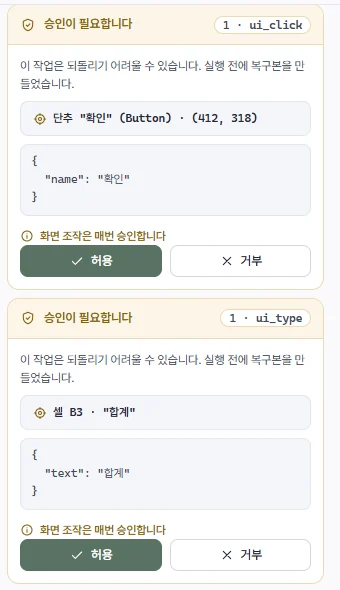
A checkpoint copy is made before the first write of each request, and your original is never auto-saved. VBA, sheet deletion and screen actions show what will happen where, then ask you to allow or deny.
TechCheckpoint copies stay in your user folder on your PC. Approval is remembered by "which tool runs which code", so if the code differs even slightly, it asks again. Screen actions show the target to click (such as a button name) on the card and ask every time.

Say something like "build a monthly pivot by vendor and chart the top 10" and it carries on to the end. The accounting skills first teach it your rules for descriptions, accounts and closing schedules, so it works like it knows accounting.
TechThe AI can use a fixed set of 32 tools and nothing else. Power Query, VBA and Python code is checked before it runs, and commands that reach the internet or other files are blocked. Python 3.13 ships in the installer, so there is nothing extra to install.

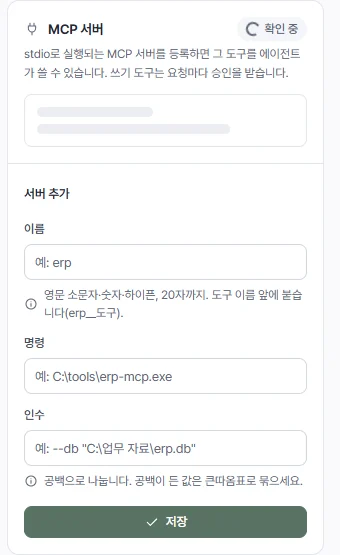
It looks at the ribbon and dialogs on screen, finds what it needs and clicks it. Register an MCP server and internal tools like ERP lookups run under the same approval rules.
TechFor screen actions, the AI takes a screenshot of Excel, looks at it, and finds buttons and menus by name to click. It works only in the Excel window brought into the app, and stops if another window covers it. External tools are registered over MCP (a common standard for plugging tools into AI). Read-only tools run right away, and tools that change things need approval. Connecting to MCP servers across the internet comes in the next version.

There are four ways to put AI to work on Excel. Three work outside Excel. Only one works inside it.
| Item | Paste into ChatGPT | Excel add-in | Browser-grid AI suites | Xside |
|---|---|---|---|---|
| Your Excel, as is | Another window | Web task pane | Different program | Real Excel, inside the app |
| 50,000-row ledger | Paste limit | Cell-by-cell, slow | Browser does the math | 3.2 s / 4.4 s |
| Pivot · Query · VBA | Explains only | Formula hints at most | Partial imitation | Native Excel features |
| Formats · macros | Must move results back | Kept | Some break | Original file, 100 % |
| AI choice | One service | Vendor only | A few | 4 options · local Ollama |
| Where data goes | Uploads whole sheet | Vendor cloud | Connected AI | Only needed ranges · your choice |
| If the AI breaks it | Manual recovery | Ctrl+Z | Editor undo | Checkpoint + per-call approval |
| Air-gapped network | No | Mostly no | With local model | USB install · on-prem server |
Add-in = Copilot, GPT for Excel and the like. Browser-grid AI suites = products that imitate Excel with a browser grid. Other products' cells describe the typical case, and the Xside cells are measured values from the validation record.
Xside's promise is "an AI that drives the real Excel on your PC." That one sentence chose Windows for us. Four reasons.
The official channel Microsoft opened for other programs to control Excel (COM automation) exists only in desktop Excel for Windows. Ranges, formulas, pivots, Power Query and VBA are all reached through that door. Excel for Mac exposes only a narrow AppleScript window, and pivots, queries and the data model are not reachable through it.
Xside holds the Excel window inside its own window. Windows lets one program adopt another's window as an owned window; macOS's security model does not allow an app to embed another app's window. On a Mac the best you get is two windows side by side.
A 50,000-row summary in 3.2 s happens because ranges move as one block and Excel's engine does the math. Without that channel you either move cells one at a time (the add-in way) or imitate the math in a browser (the web-grid way), and both crawl past tens of thousands of rows. A fast Mac version cannot be built; a slow one isn't worth building.
ERP integrations, e-invoicing, corporate security agents and air-gapped PCs are almost all Windows. We went first to where the 50,000-row ledgers live.
| What it takes | Windows Excel | Excel for Mac | Excel on the web |
|---|---|---|---|
| Official automation channel | COM automation | AppleScript, narrow | None (browser sandbox) |
| Pivots · Power Query · data model | All of it | Out of reach | No |
| Host the Excel window in-app | Owned window | Blocked by the OS | No |
| Block range transfer (speed) | 3.2 s / 50k rows | Cell by cell | Cell by cell, round trips |
| Result | Real Excel, as is | An imitation | Same as an add-in |
Today: run Windows and Excel in Parallels or VMware and Xside works inside it as is. A remote Windows PC at the office (Remote Desktop) works too.
Later: if Excel for Mac opens the same channel, Xside follows. Until then we will not ship an "Excel imitation" Mac version under the same name: it would be slower and less compatible.
TechWindows Excel runs as a COM automation server: another process calls Workbook, Range, PivotTable and Query objects directly and exchanges ranges as SAFEARRAY blocks. Excel for Mac's AppleScript dictionary exposes only part of that object model, and macOS has no API for adopting another app's window as an owned window. Excel on the web lives in the browser sandbox where local processes cannot reach it, and add-ins (Office.js) round-trip cell by cell.
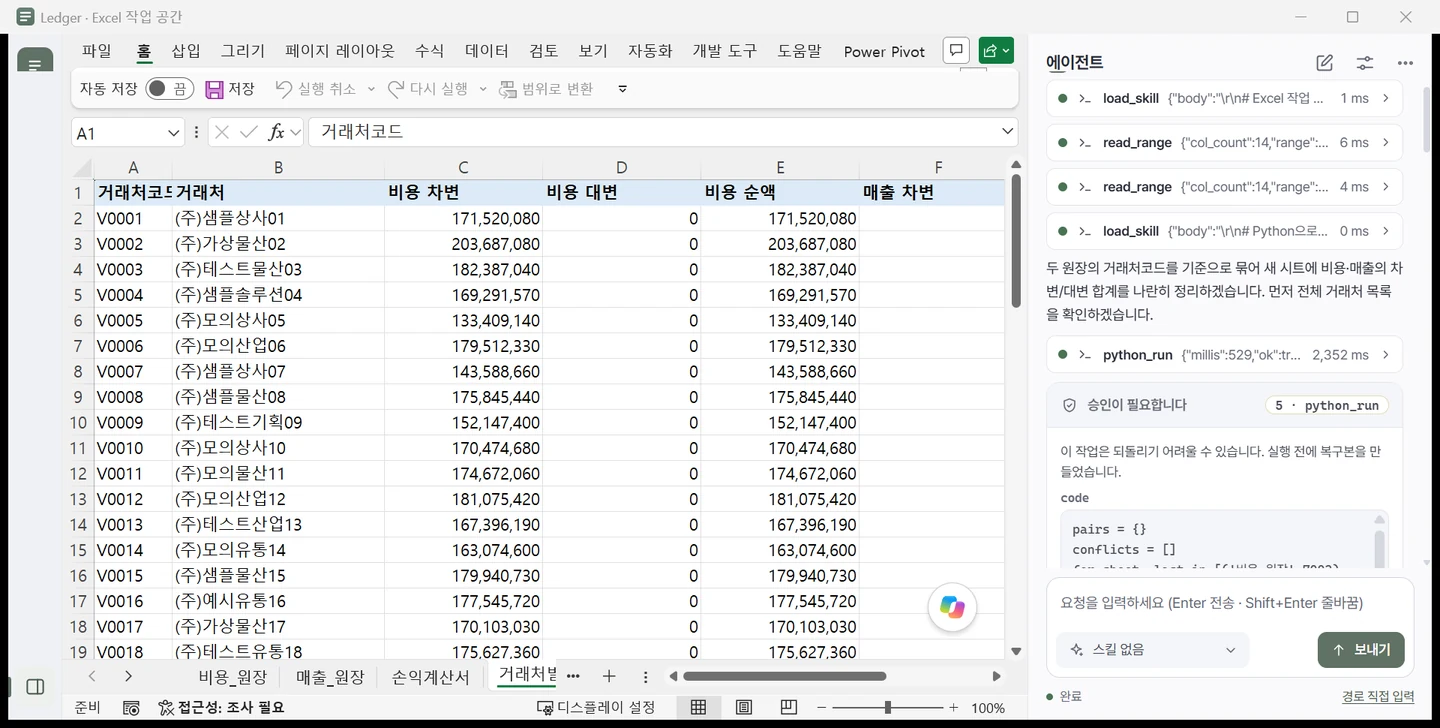
"Build per-vendor totals on a new sheet." Seven accounting skills first teach the AI your rules for descriptions, accounts and closing schedules.
It reads only the ranges it needs and writes formulas and tables in one go. The 50,000 rows are never sent to the AI.
It shows the code and target cells, and you allow or deny. A checkpoint copy has already been made before that.
External access from formulas, queries and VBA written by the AI (WEBSERVICE, Web.Contents, external links) is blocked, and after any screen action the whole workbook is re-checked within 1 second. Excel work you do yourself is not restricted.
Anything off the list, the AI cannot even attempt. External tools only through MCP registration and approval.
Before the first write of each request, a copy is saved in your user folder. Your original is never auto-saved.
Only updates with a valid ed25519 signature and SHA-256 are installed, into your user folder with no admin rights.
Windows 10·11 (64-bit) · Desktop Excel 2016 or later · WebView2 · 72.6 MB · Python 3.13 included
Download Xside-Setup.exeThe download link is not connected yet. Install only a file that matches the SHA-256 below.
6E4BF82AD81C1FC1A2CEE4AA1E69D336EC84284085CCDE6DD90A8AF5FA5BA05289A2CC4DA99977B038FCDF4CB8126D5977FAB6F21AD45A498D4DDF47B99F918AThis build is not code-signed yet. If SmartScreen shows a warning, choose "More info → Run", and verify the file with certutil -hashfile Xside-Setup.exe SHA256.
The installed app and its executable (Ledger.exe) are renamed to Xside from version 0.9.